Domain Access Control
Table of Contents
- Video walk-through
- Setting access for a team member
- Setting access for a domain
- Have more questions?
Set access levels for each team member in your account. For what Domain Access Control is and what each access level means, see What is Domain Access Control?.
Note
Domain Access Control is only available on eligible plans.
Video walk-through
Setting access for a team member
To set access for a team member across domains
- Select the relevant account from the account switcher, then click the gear icon next to the account name to open .
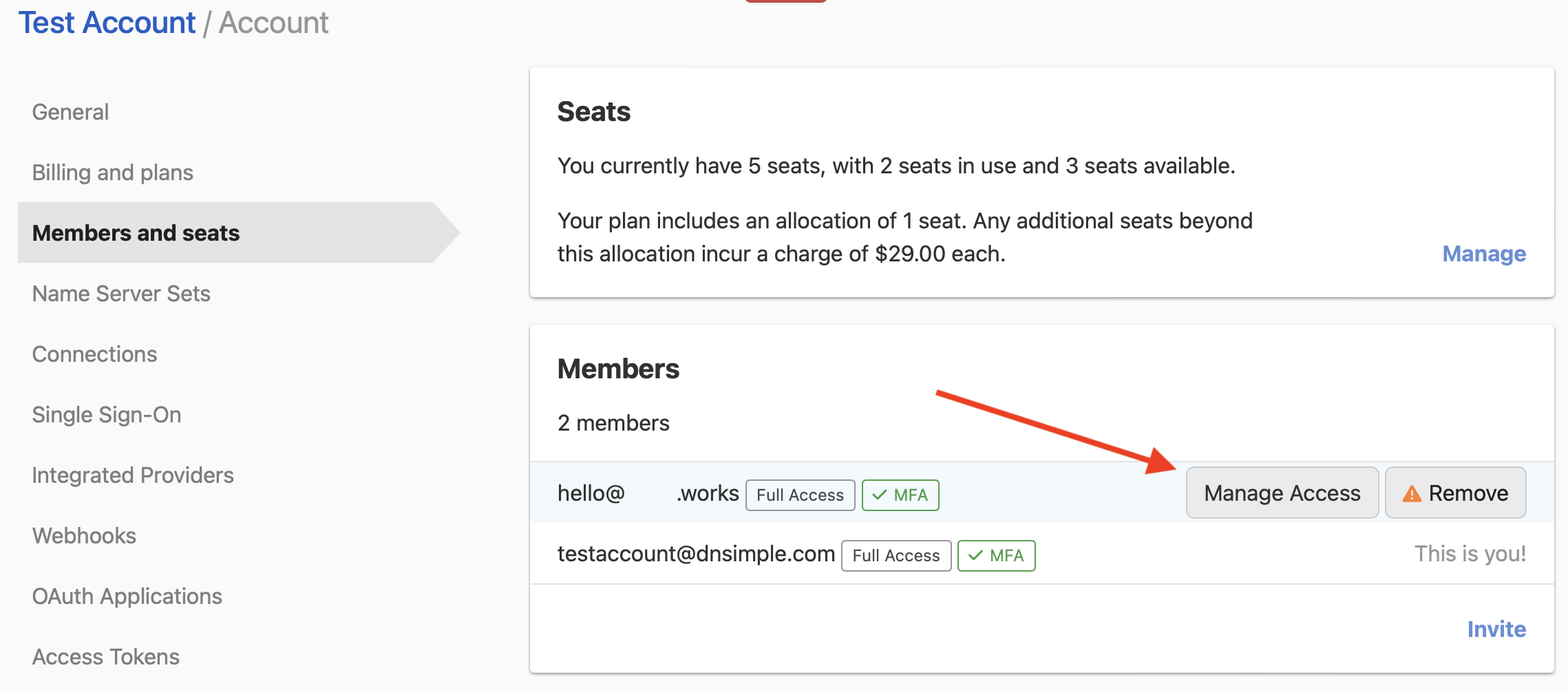
- Click the tab. On the card, each team member has and actions.
-
Click for a team member to set their access level to Full Access or Limited Access.
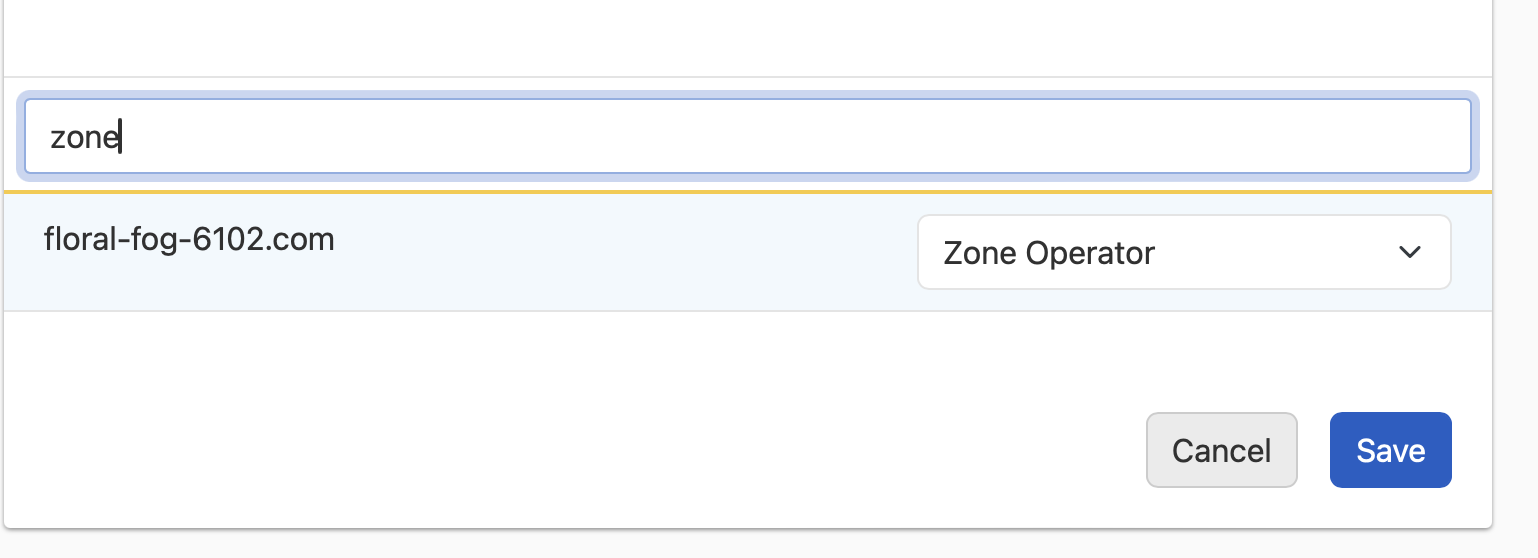
You can choose when inviting or managing a member, or to grant access per domain.
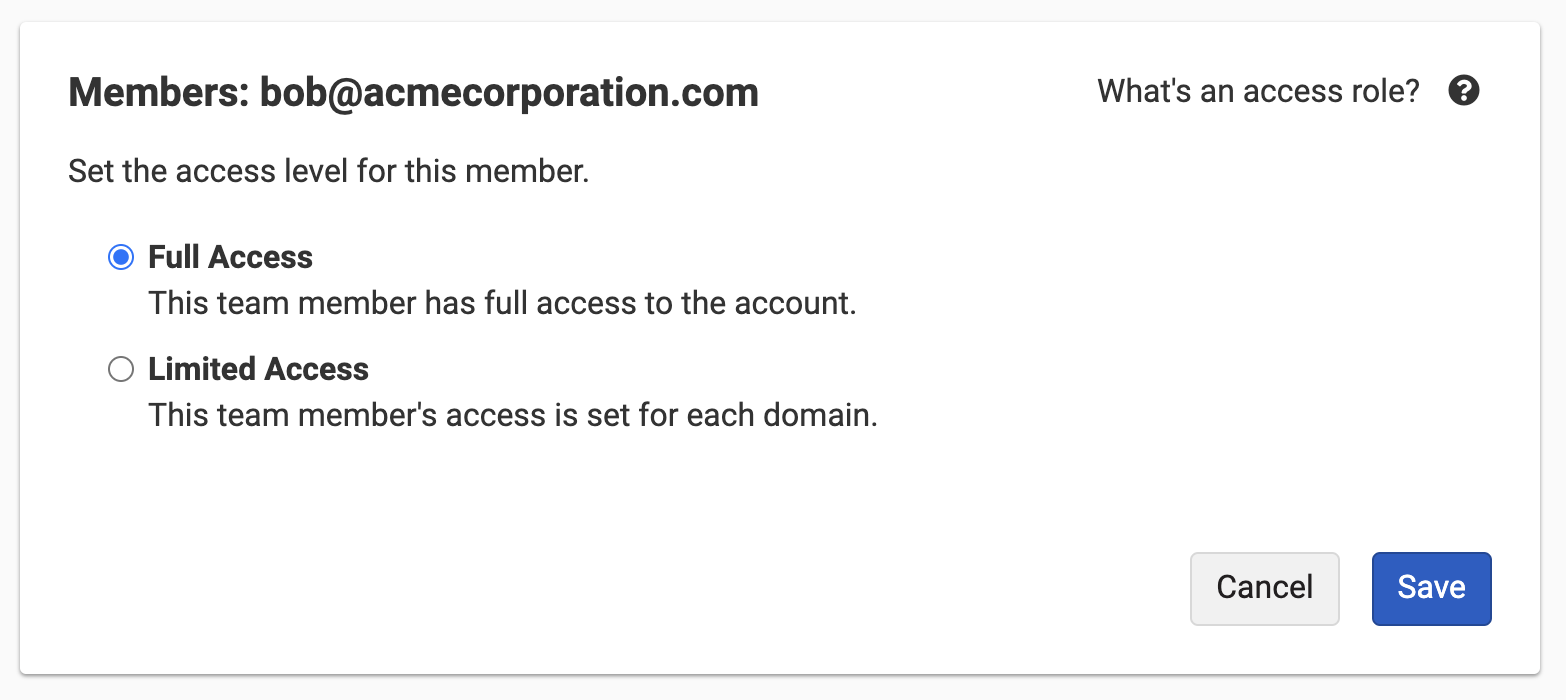
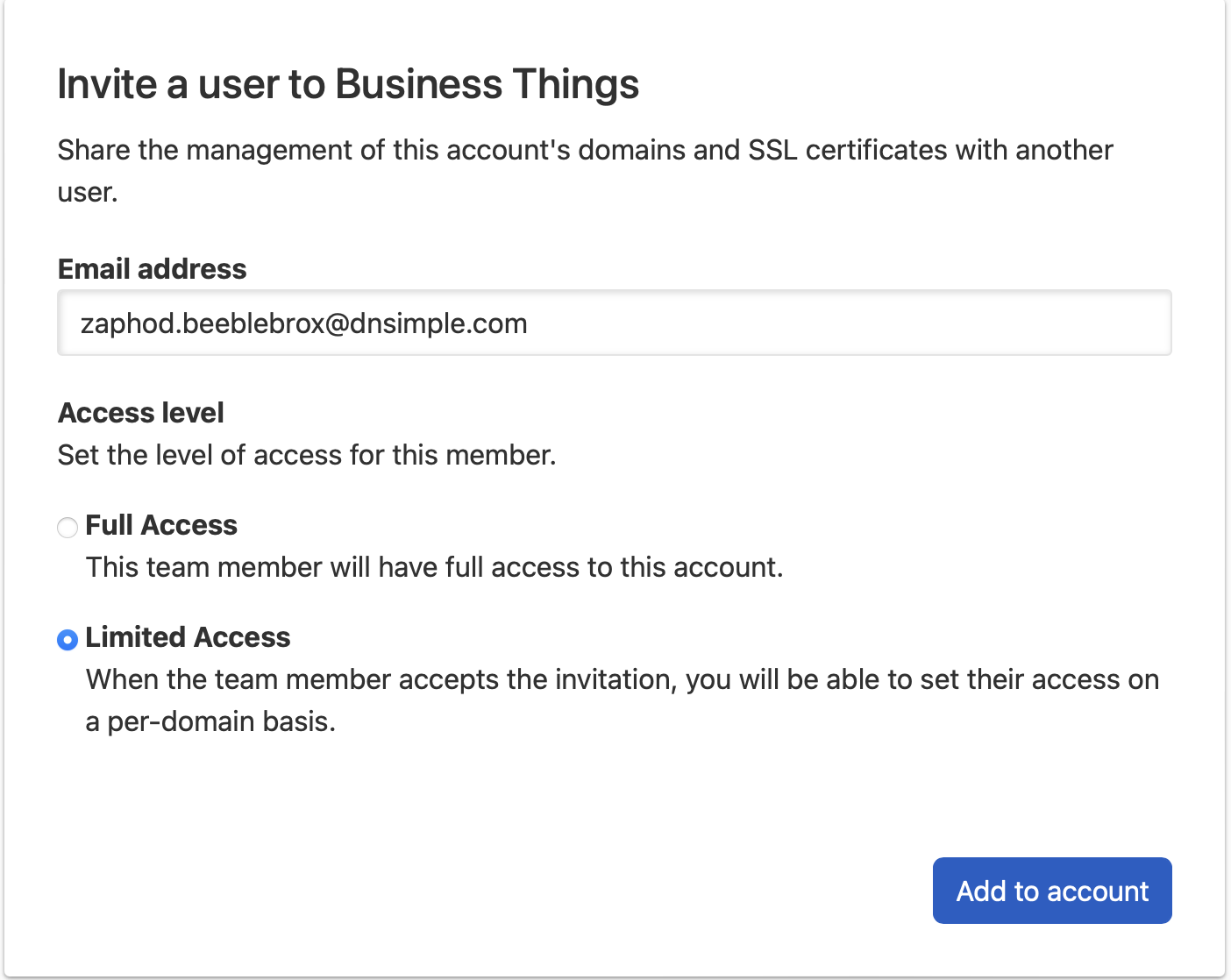
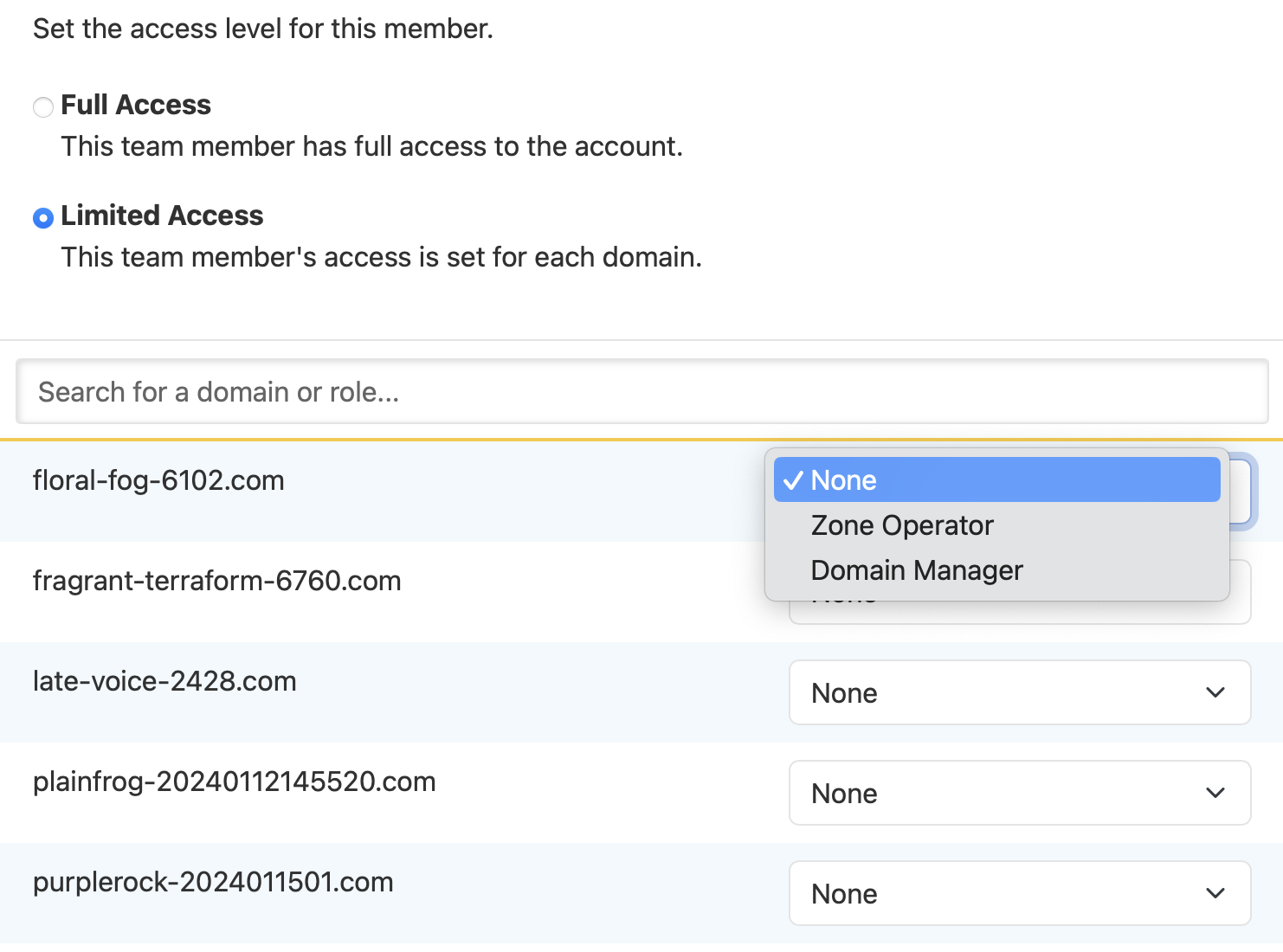
If you invited someone with Full Access and want to restrict them, set their permission to . You can then assign a Domain Manager or Zone Operator role for each domain.
Setting access for a domain
Note
A team member must have Limited Access before you can fine-tune their access at the domain level.
Configure per-domain permissions from the domain access settings or from the member screen.
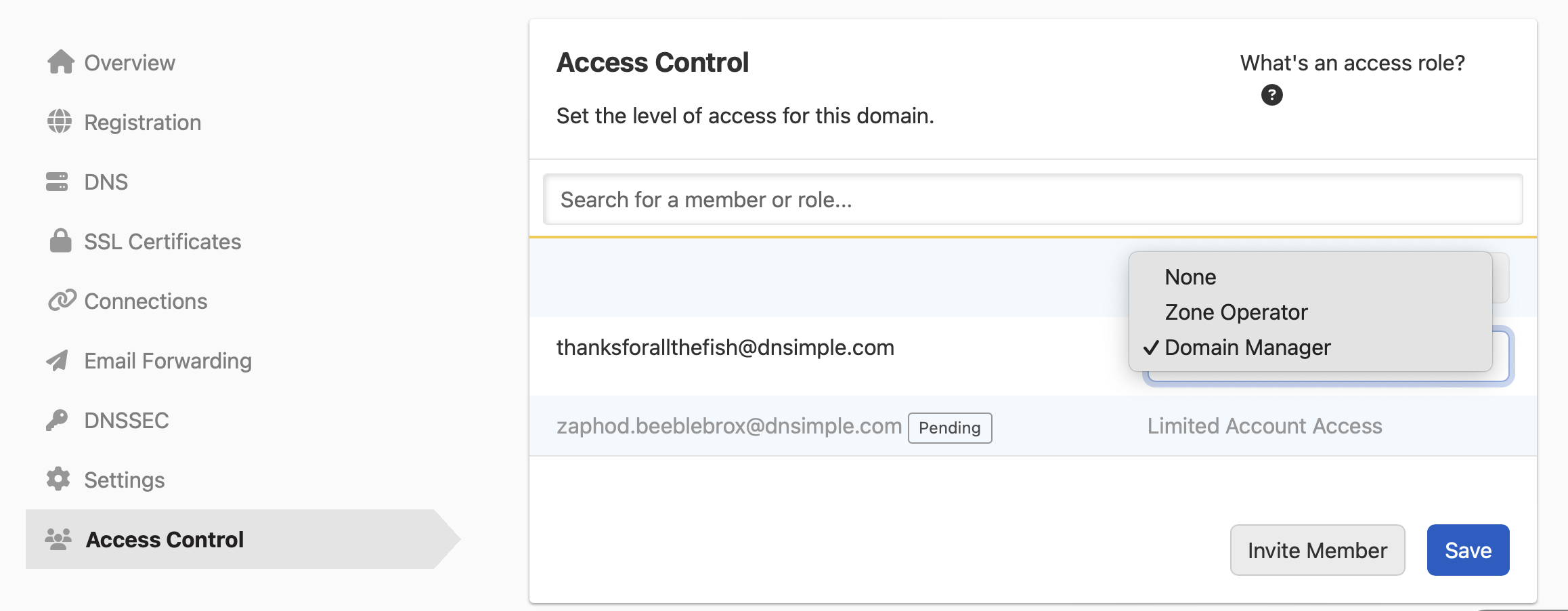
For what each domain-level role includes, see Domain Manager and Zone Operator.
Have more questions?
If you have questions about Domain Access Control or how to implement it for your organization, contact support, and we will help you get sorted.
Want to limit access to other parts of your DNSimple accounts? Let us know what permissions you are interested in, and you may see it in a future feature release.