Managing Multiple Members on One Account
Table of Contents
- Adding members to an account
- Removing members from an account
- Managing member access
- Have more questions?
Invite and remove members on accounts with multiple users. Each member signs in with their own user email and credentials.
Note
To add multiple members to one account, you must be subscribed to an eligible plan.
When you add someone to an account, they become a member with their own user login and multi-factor authentication settings. You can set their level of access when you invite them. For how users, accounts, and members relate, see Users, Accounts, and Members at DNSimple. If you are onboarding a new team, follow the First Steps Guide to Setting Up Your Team.
Adding members to an account
To add a member to an account
-
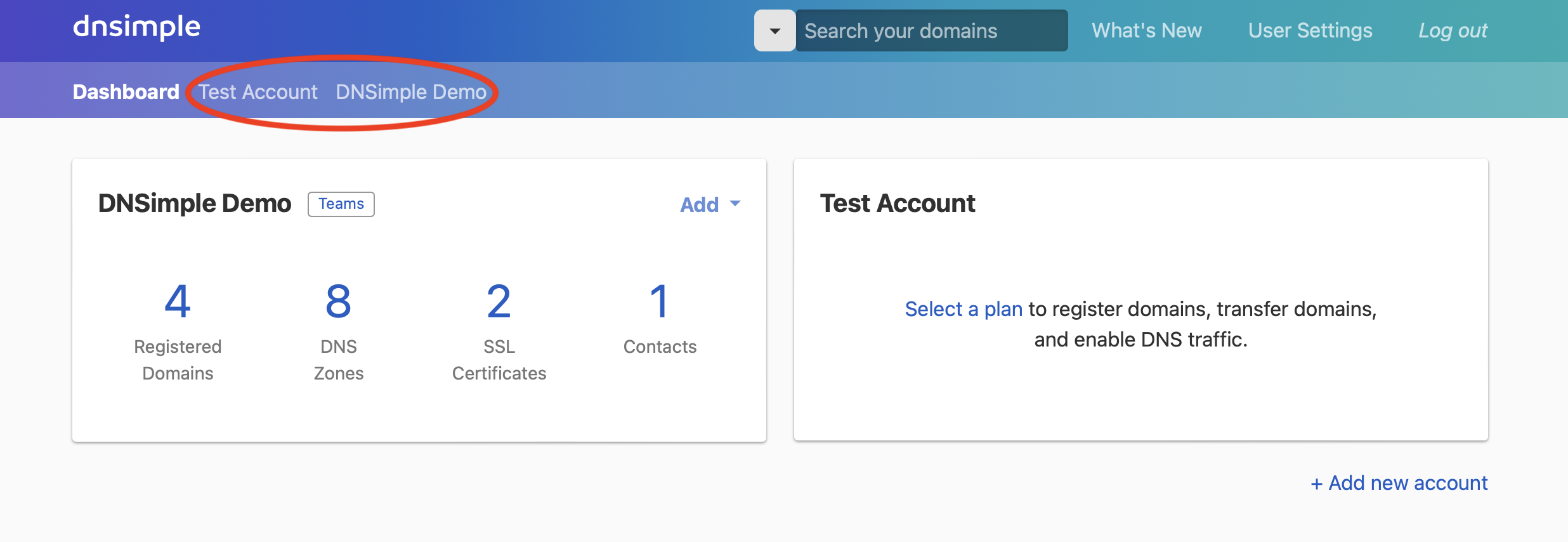
Click the gear icon ⚙️ next to the account name in the account switcher to open .
-
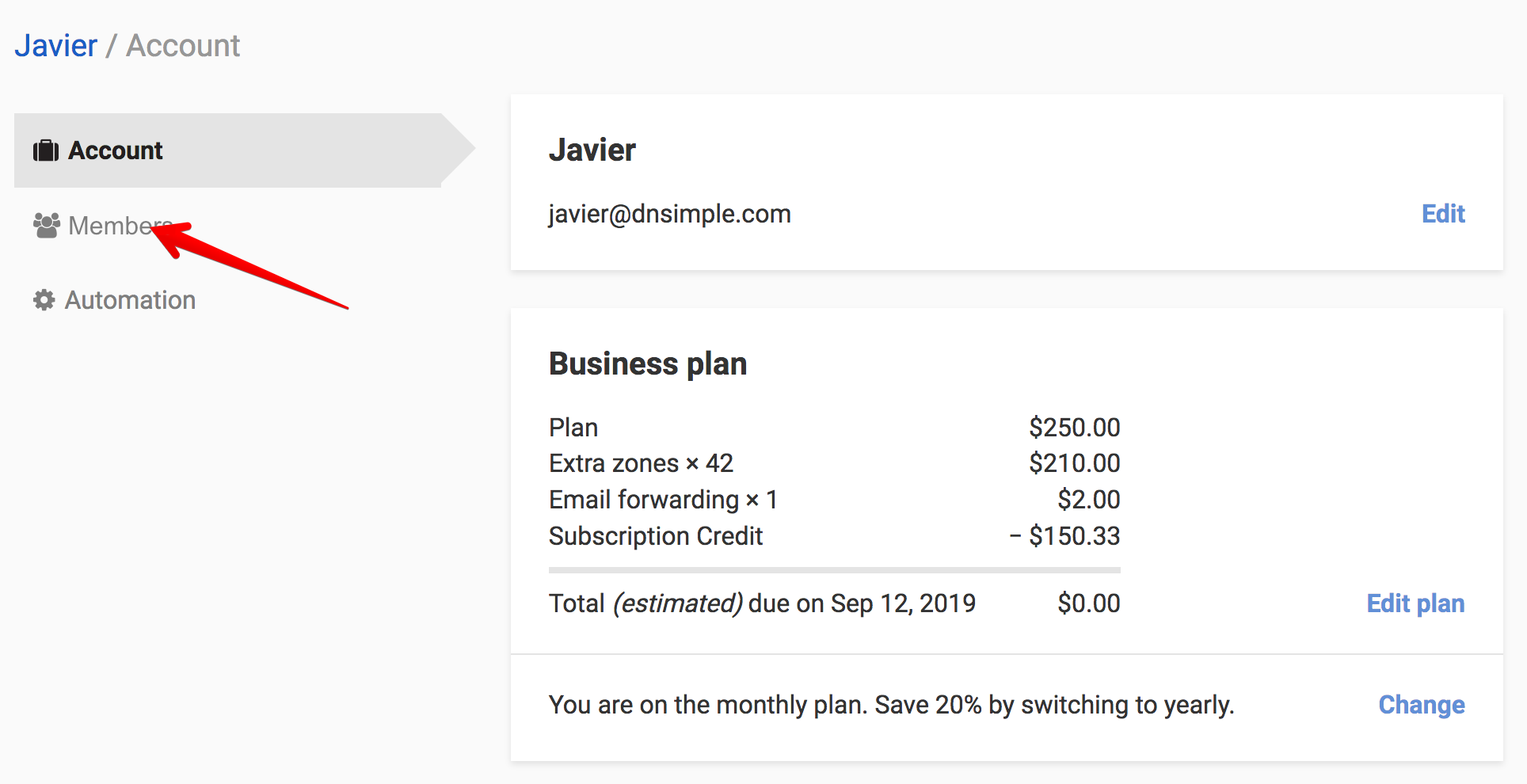
Select the tab.
-
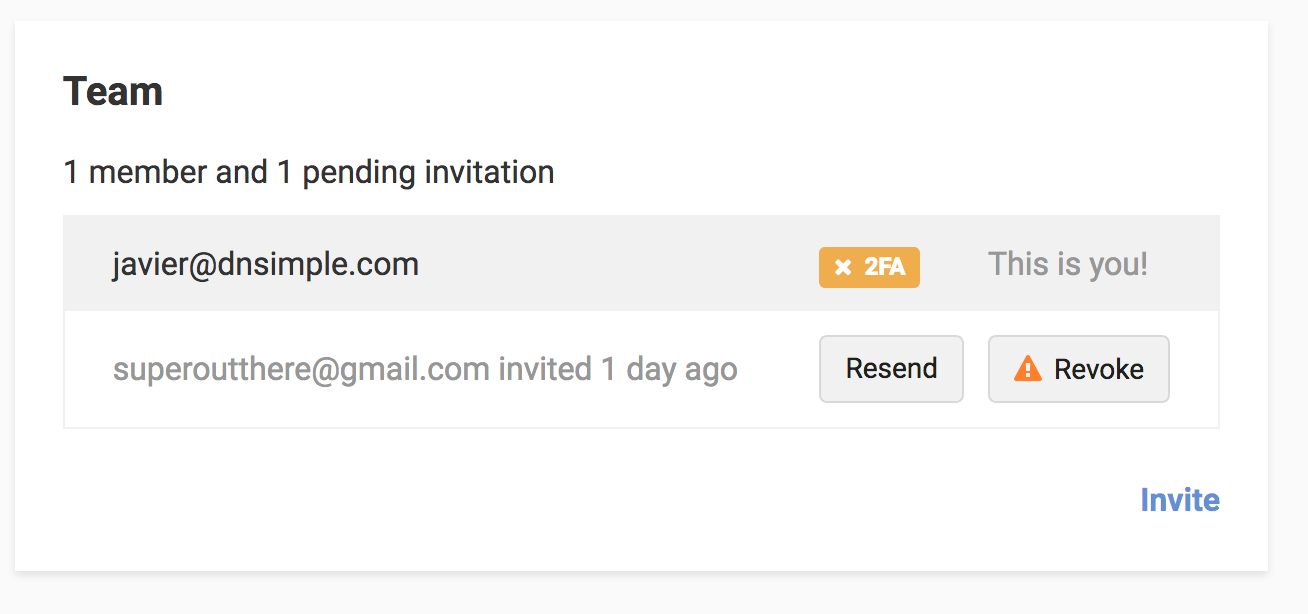
Click . If there are no available seats on the account, the link will display . You will need to add another seat before you can send the invitation.
-
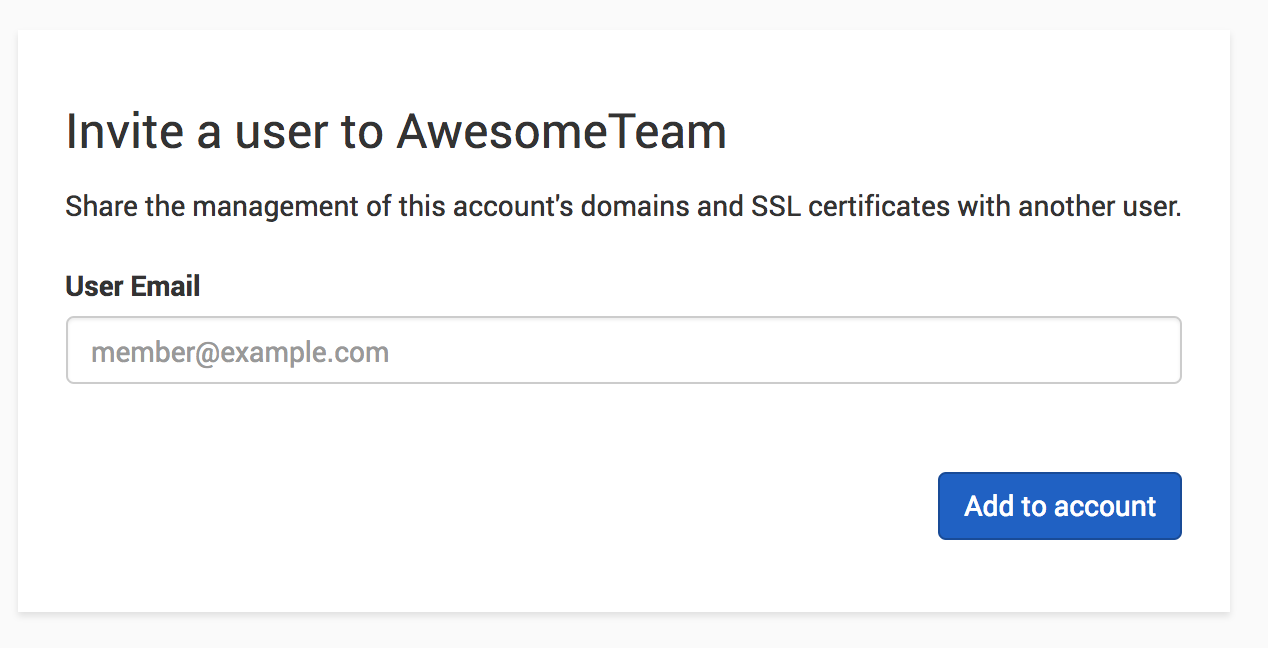
Enter the email address of the person you want to invite. They can already have a DNSimple user, or create one when they accept. Choose their access level when you send the invitation. See What is Domain Access Control?.
-
The invitation appears in the pending invitation section until the user accepts it. Click the menu at the end of the invitation’s row, then select to send it again, or to cancel it immediately.
Note
You cannot add a user whose email address matches the account notification email. First change the notification email (we recommend a generic address such as admin@ or billing@), then add the user.
Removing members from an account
To remove a member from an account
-
Click the gear icon ⚙️ next to the account name in the account switcher to open .
-
Select the tab.
- Click the menu at the end of the member’s row, then select , and confirm the removal.
- After you remove them, that user no longer appears on the members tab, and you have an available seat for a new member. See Managing Seats for seat management.
Note
Members cannot remove themselves from an account. An account administrator must remove them.
Managing member access
To limit which domains each member can manage, use Domain Access Control. For what each access level means, see What is Domain Access Control?.
Have more questions?
If you have questions about managing members on your account, contact support, and we will be happy to help.