Changing Email
Table of Contents
DNSimple uses two different email addresses. Your user email is what you use to sign in. Each account has a notification email where DNSimple sends messages for that account, such as renewals and payment notices. For how users, accounts, and members relate, see Users, Accounts, and Members at DNSimple.
Changing the user email
Your user email is tied to your personal DNSimple login. Changing it does not change the notification email on any account.
To change your user email
-
Go to your user page by clicking the account switcher at the top-right corner of the screen, then select .

-
In your user settings, select .
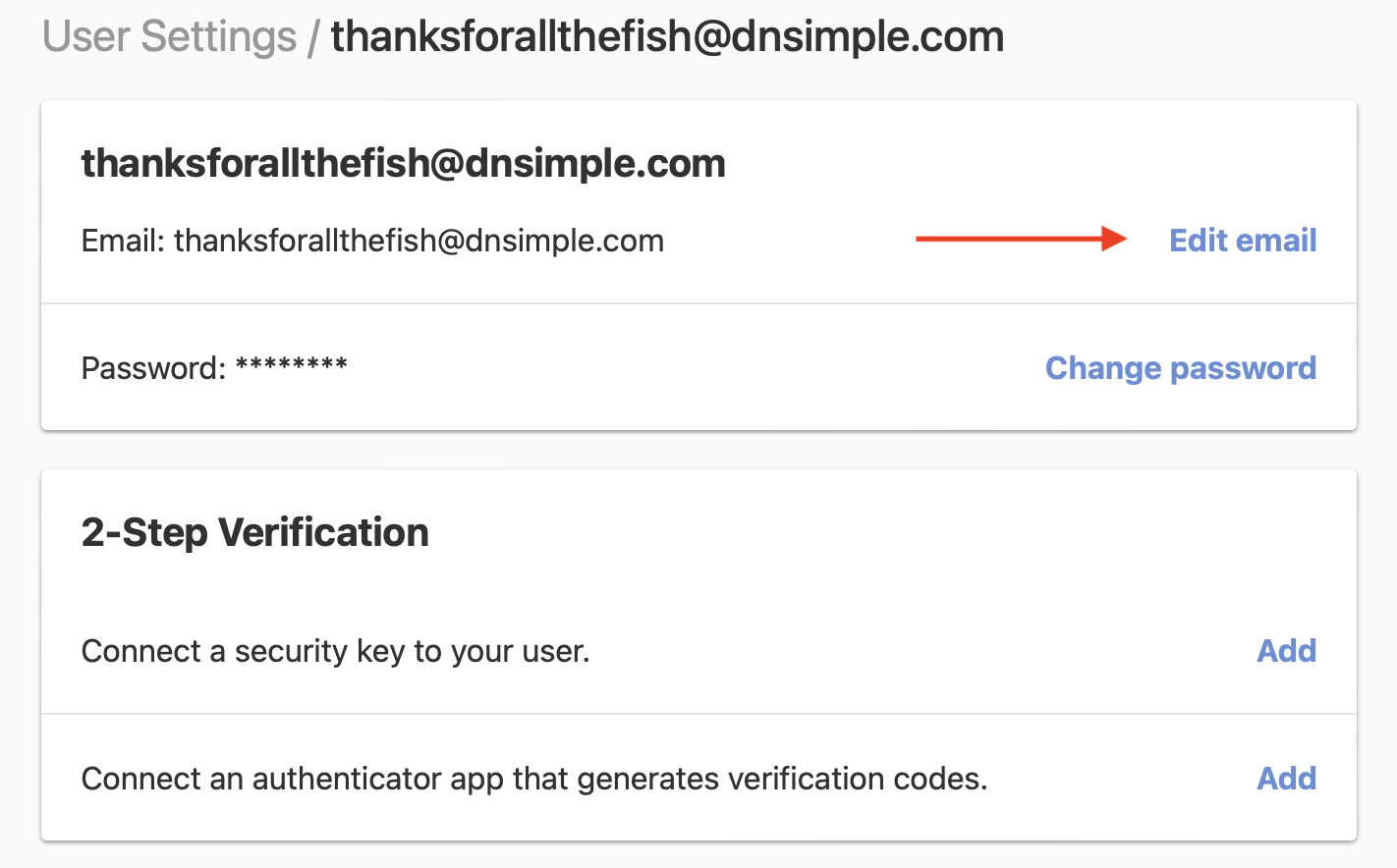
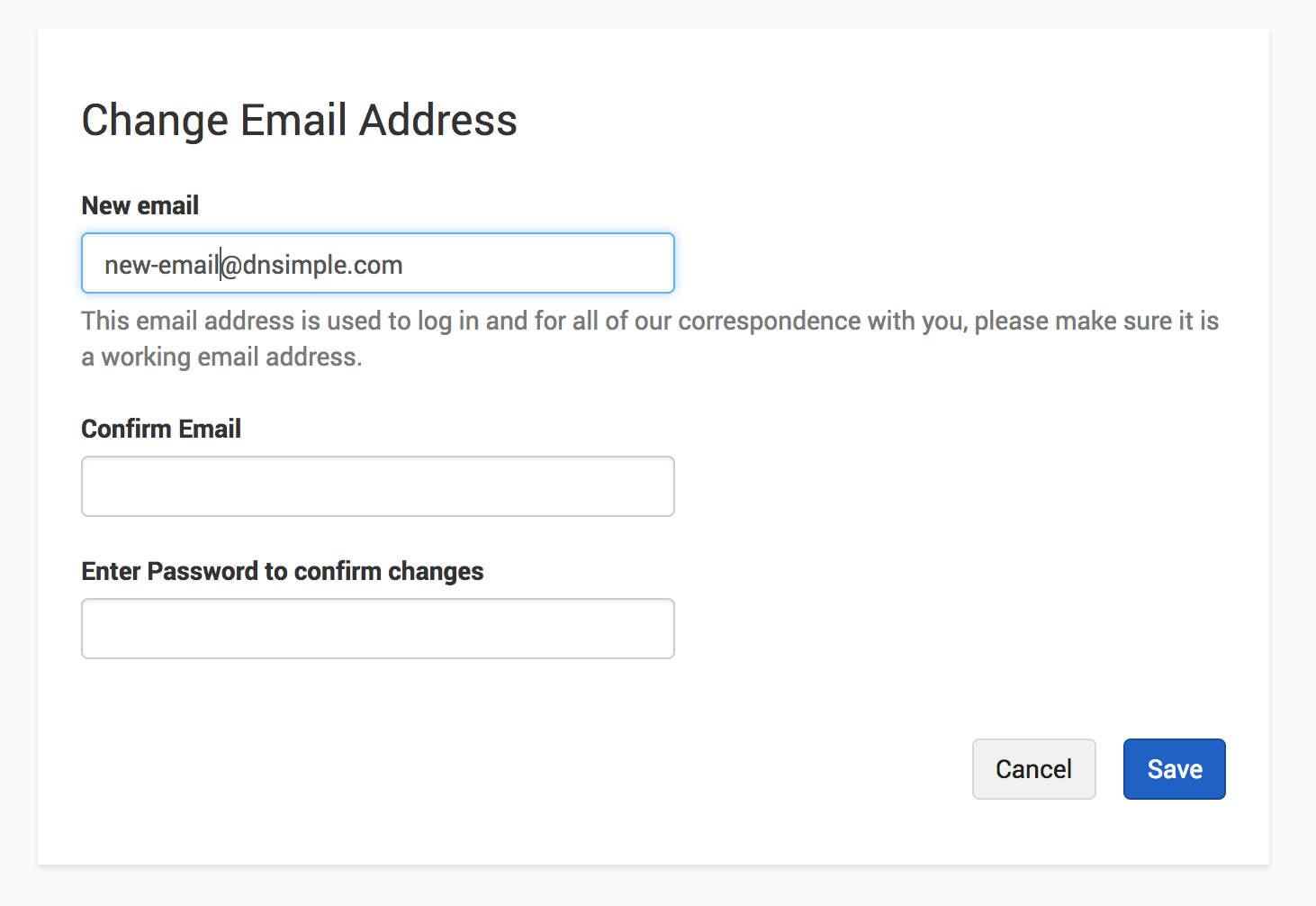
- Enter your current password and the new email address.
-
Confirm your new email, and click .
-
A verification email will be sent to the new address. Your email address will not change until you complete the verification process.
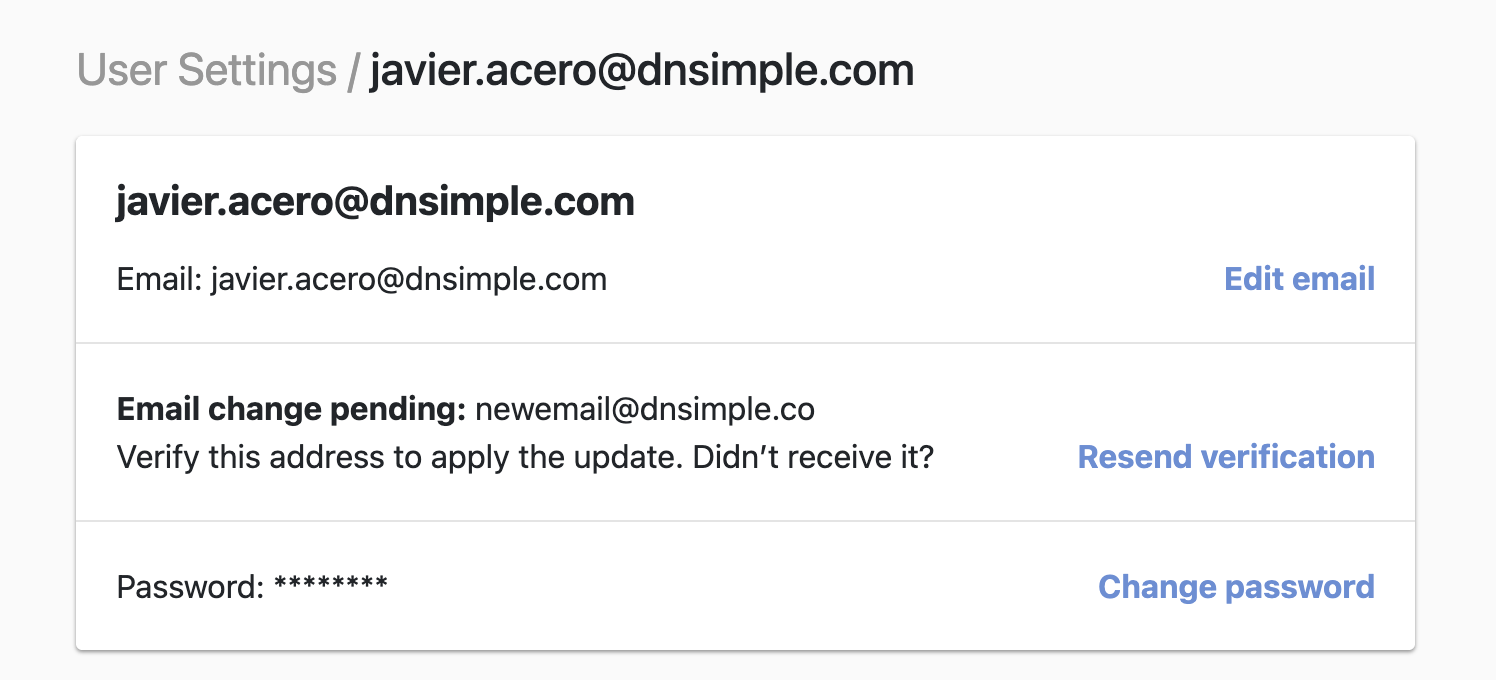
- Open the verification email and click the link to confirm the new address. Once verified, your email address will be updated.
Note
Your current email address remains active and fully functional until the new one is verified. If you have not received the verification email, you can request a new one from your user settings page. Verification links expire after 7 days. If yours has expired, requesting a new one will send a fresh link.
Setting or changing the notification email
The notification email is where DNSimple sends account messages for a specific account. It does not change your user email. For the list of messages DNSimple sends and which address receives each, see Account Notification Emails.
To set or change the notification email
- Click the in the upper right-hand corner of the page.
- Click the gear icon next to the account you want to update, then open .
-
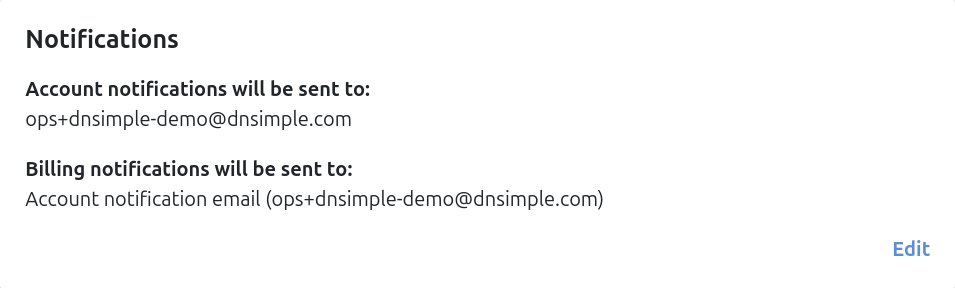
On the card, click .
-
Enter the email address where you want account notifications to go.
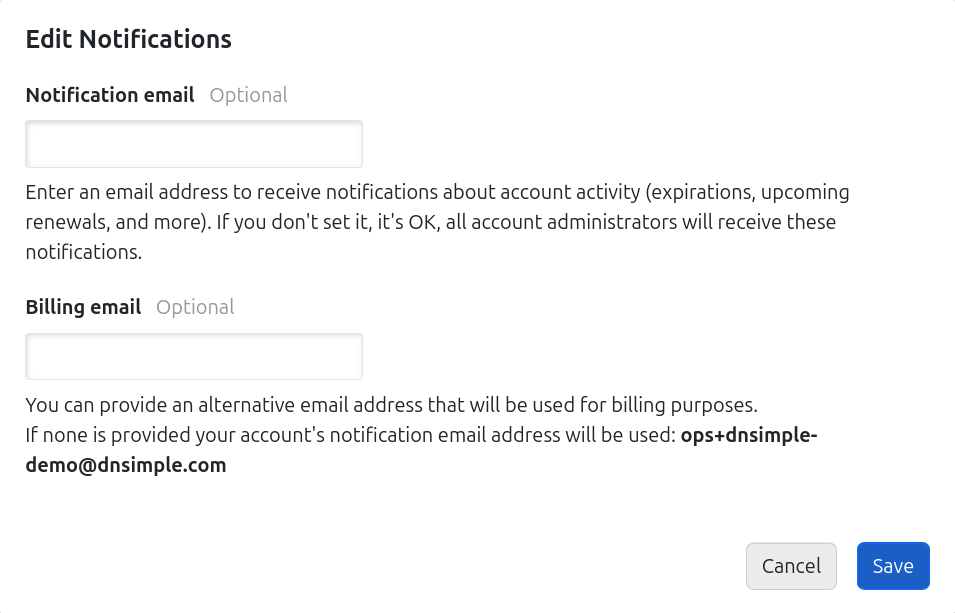
- Click to save your changes.
Note
If you do not set a notification email, all account administrators receive notifications by default. On eligible plans, you can also set a separate billing email. See Billing Settings.
Have more questions?
If you have questions about changing your user email or a notification email, contact support, and we will be happy to help.