Name Server Sets
Table of Contents
- Video walk-through
- Types of name server sets
- Creating an account name server set
- Updating an account name server set
- Deleting an account name server set
- Have more questions?
Use this guide when you want to save a reusable list of name server hostnames (and optional glue IP addresses) in DNSimple, then pick that list when you change name server delegation, configure Secondary DNS, or edit zone NS records. For the same pattern applied to full DNS record sets, see How to Use Templates.
Note
Changes to a name server set’s definition will not affect any existing domain name server or configurations that had included the name server set.
Video walk-through
Types of name server sets
There are two types of name server sets:
- System name server sets
- Account name server sets
System name server sets
System name server sets are pre-defined name server sets provided by DNSimple which cannot be modified. They contain DNSimple name servers. Unlike account name server sets, system name server sets are not listed on the Account > Name Server Sets page, as they are system-defined and cannot be managed by users.
Account name server sets
Account name server sets are private to an account and can contain custom name servers. You can manage your account’s name server sets at any time from the Account > Name Server Sets page, if you have full access to the account.
Creating an account name server set
Create a name server set
-
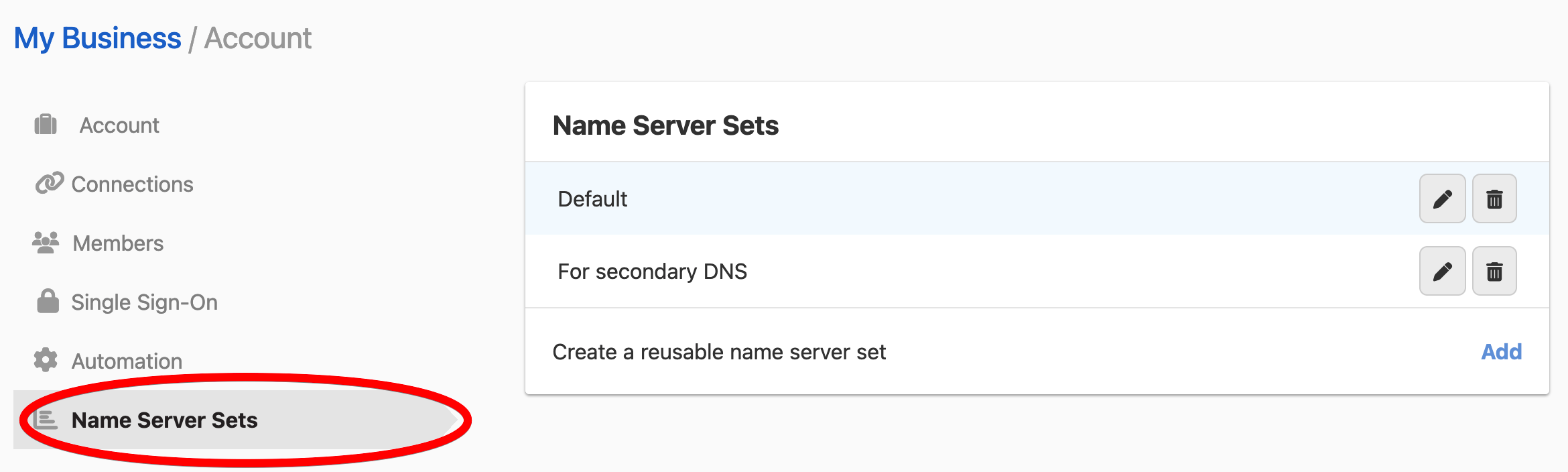
Go to the page, and click the tab.
-
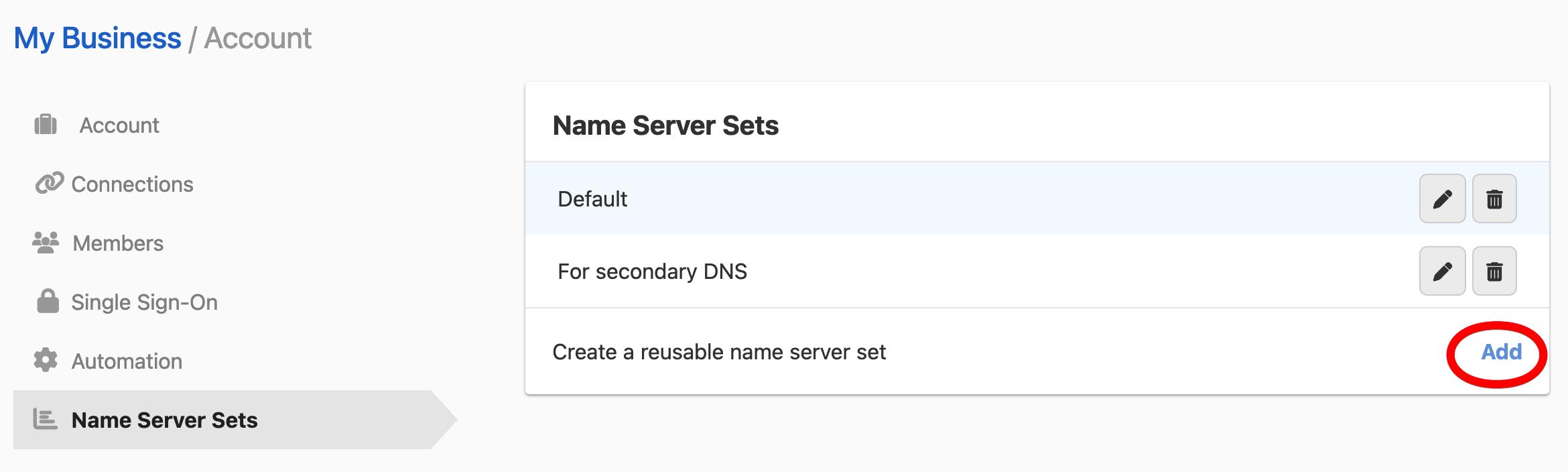
Click on to create a new name server set.
-
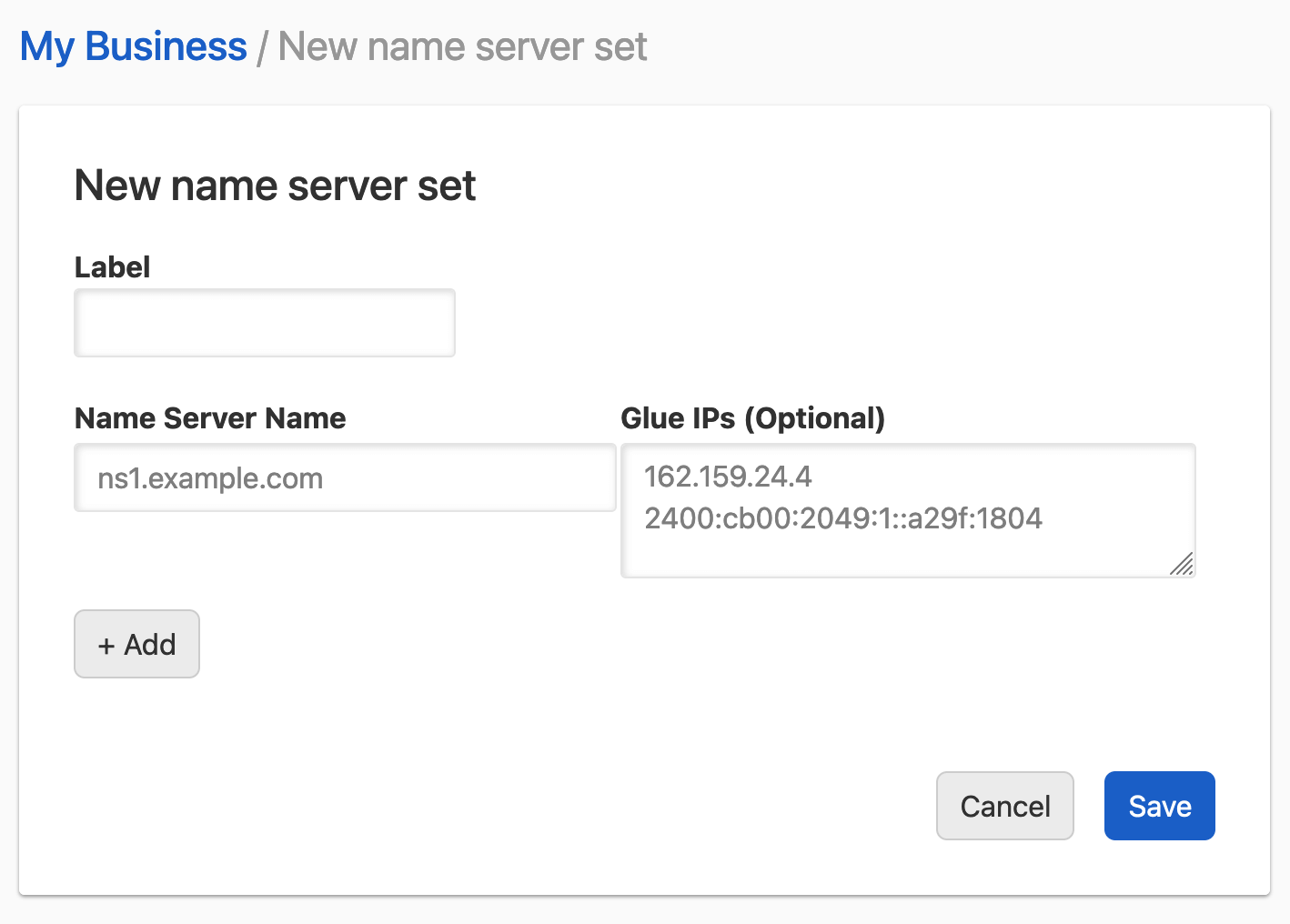
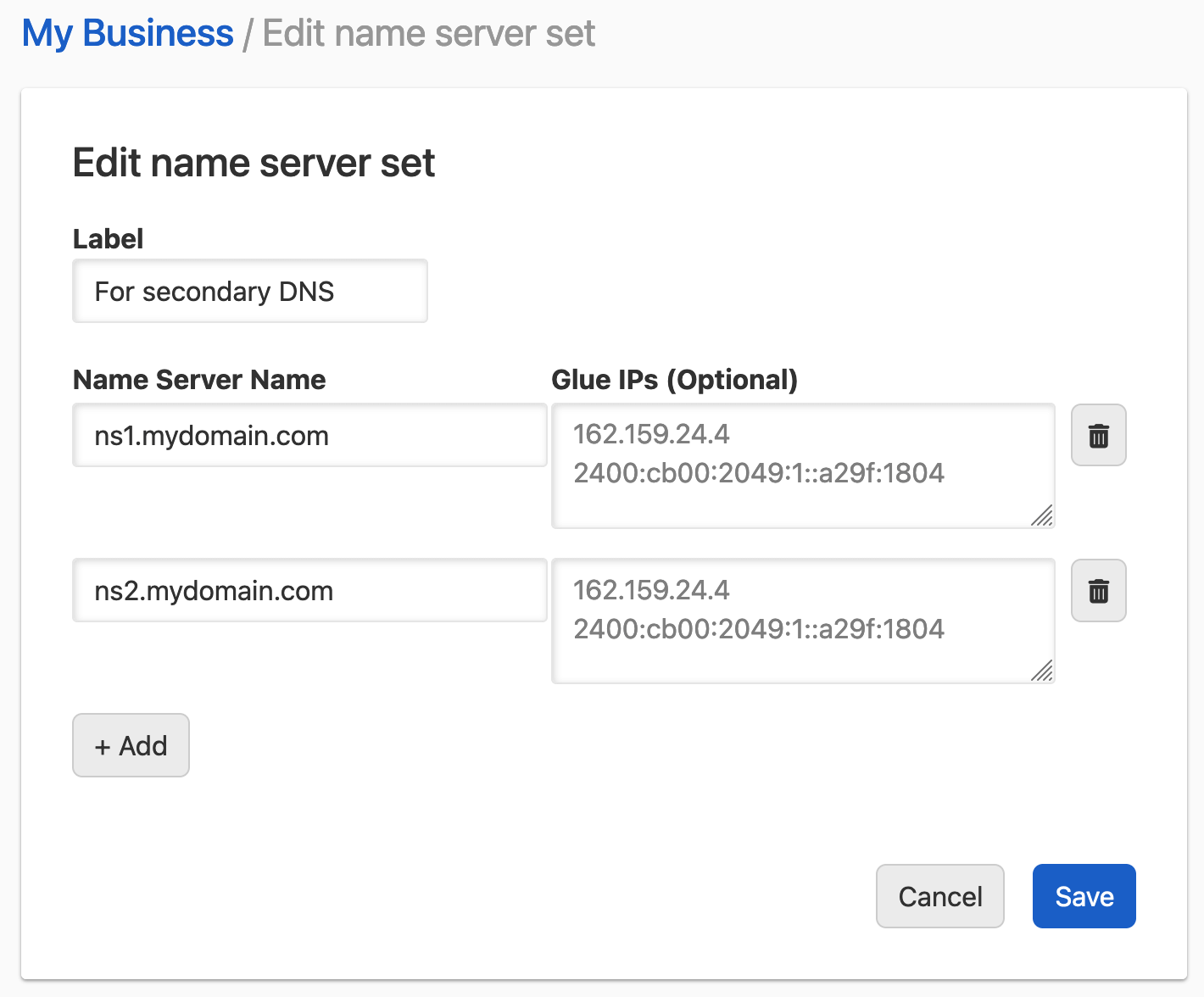
Enter a unique label for the new name server set, the hostname, and (optionally) glue IP(s) for each name server you want in the name server set. Glue IP(s) are used only when changing name server delegation for domains registered with DNSimple.
-
Click on to save the name server set.
Updating an account name server set
Update a name server set
-
Go to the page, and click the tab.
-
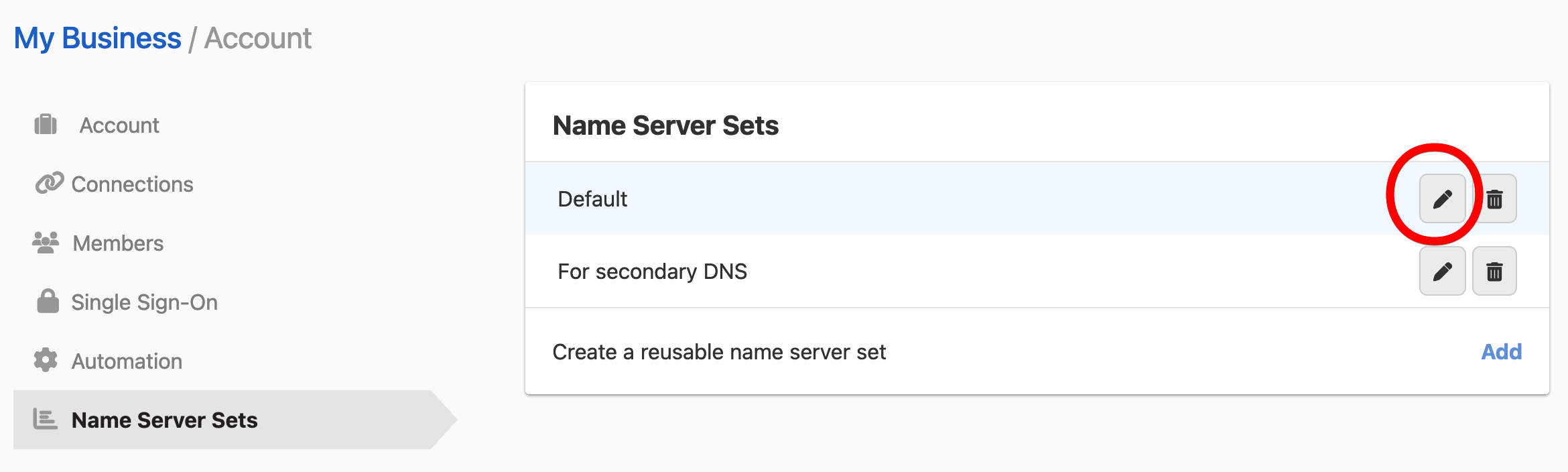
Search for the name server set you want to update, click the menu at the end of its row, then select .
-
Update the information and click to save the changes to the name server set.
Deleting an account name server set
Delete a name server set
-
Go to the page, and click the tab.
-
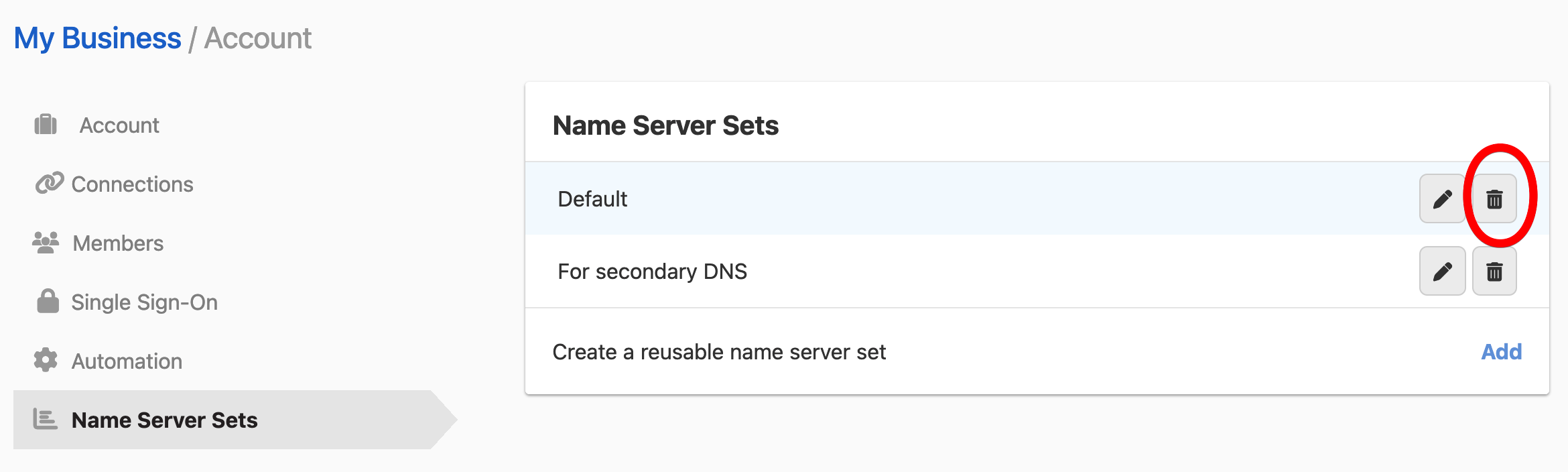
Search for the name server set you want to delete, click the menu at the end of its row, then select .
Note
Deleting a name server set will not affect any existing domain name server or NS record configurations that had included the name server set.
Have more questions?
If you have questions about name server sets, contact support, and we will be happy to help. You can also read more about DNS hosting at DNSimple.