How to Use the Record Editor
Table of Contents
- How to use DNSimple’s Record Editor
- Accessing the Record Editor
- Adding a record
- Updating a record
- Deleting a record
- Record limits per zone
- Managing integrated zone records
- Viewing Activity in the Record Editor
- Have more questions?
How to use DNSimple’s Record Editor
The Record Editor is DNSimple’s DNS editor. It lets you view, add, update, and delete DNS records for your domain in DNSimple.
Any supported DNS record type can be managed from the Record Editor, except system records. DNSimple provides two editor interfaces: the simple editor and the field-specific editor. To learn about the differences and when to use each, see Understand DNSimple’s Record Editors: Simple vs. Field-Specific.
You will need access to the account or domain to make changes. Make sure the domain is delegated to DNSimple so your records propagate.
Accessing the Record Editor
Option 1: From the top navigation bar
- Use the account switcher at the top of the page to select the appropriate account.
- From the Domain Names list, click the domain you want to manage
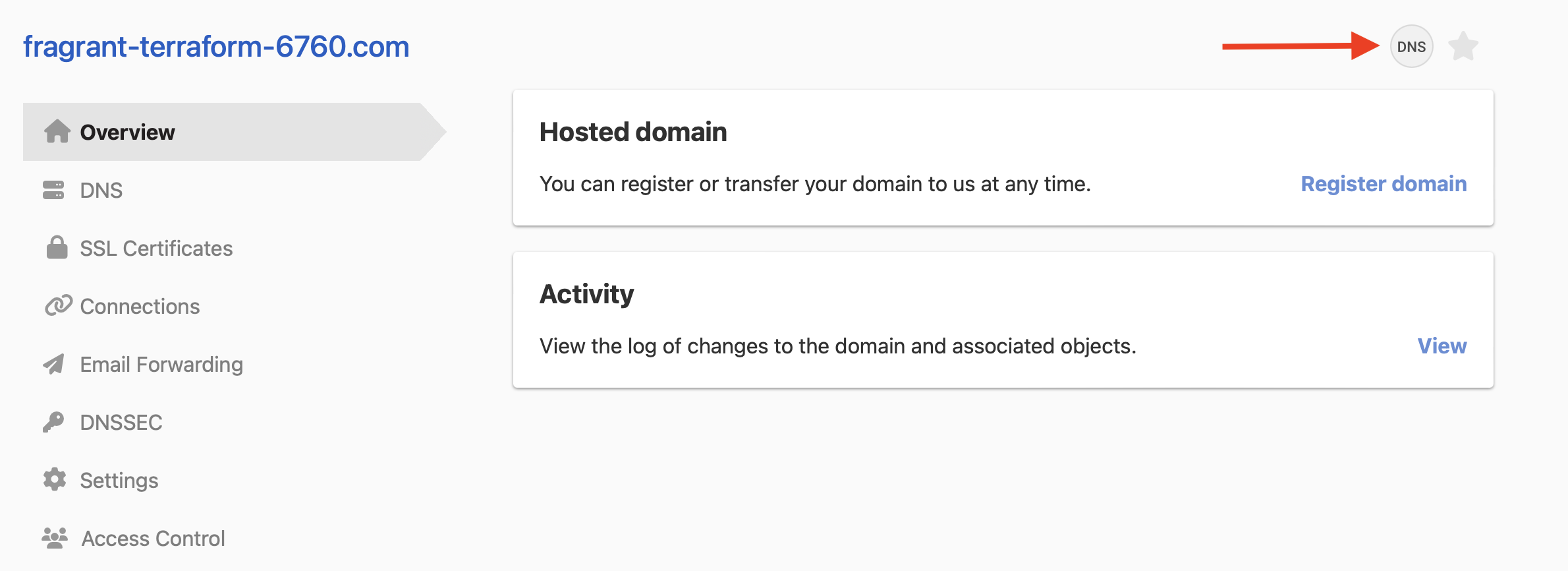
- Click the DNS tab on the left.
- Locate the DNS record section and click Manage
Option 2: From the domain page
- Use the account switcher at the top of the page to select the appropriate account.
- From the Domain Names list, click the domain you want to manage.
- On the domain page, click Record editor at the top-right of the screen.
Adding a record
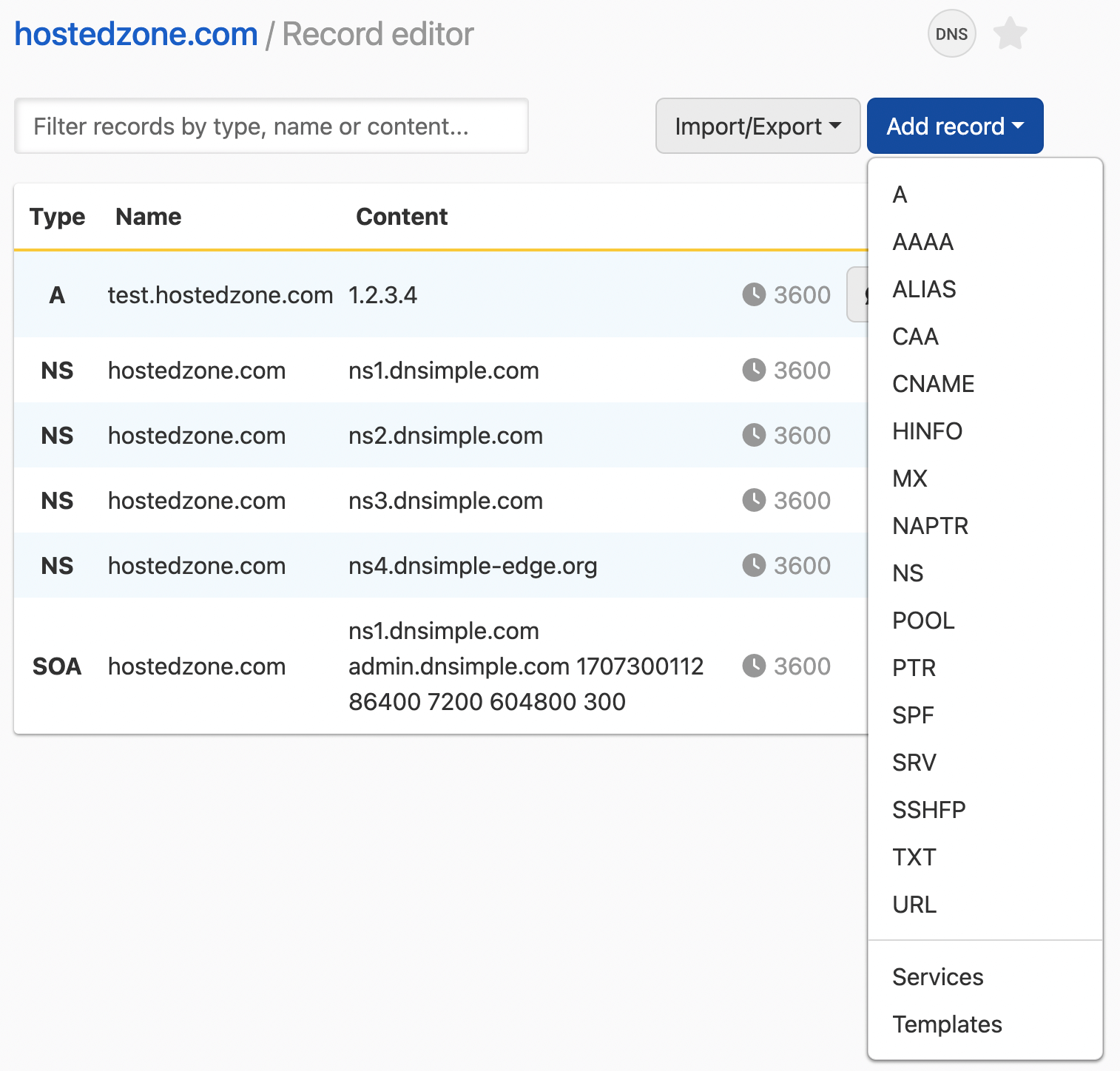
- In the Record Editor, click the Add a record button.
- Select the DNS record type you want to add (for example, A, CNAME, MX, etc.).
- Fill out the required fields for the new record.
- Click Add record to save it.
For step-by-step instructions on adding common DNS records, see How to Add Common DNS Records.
Updating a record
- In the Record Editor, find the record you want to update.
- Click the … menu at the end of the record row, then select Edit.
- Make your changes.
- Click Update record to save.

Deleting a record
- In the Record Editor, find the record you want to delete.
- Click the … menu at the end of the record row, then select Delete.
- Confirm the deletion

Warning
There is no way to undo deleting a record. The only way to restore a deleted record is to recreate it.
Record limits per zone
Each zone has a maximum number of DNS records based on your plan. Every record counts toward the limit, including system records.
| Plan | Records per zone |
|---|---|
| Solo | 100 |
| Solo Pro | 500 |
| Teams | 1,000 |
| Enterprise | Set in your contract |
The Record Editor shows how many records the zone has out of its limit, and warns you when the zone is close to it.

When a zone reaches its limit, you cannot add records until you delete some or upgrade your plan. You can still update and delete existing records.
If a downgrade leaves a zone above its new limit, the zone keeps resolving and keeps all its records. To add records again, delete enough records to get below the limit, or upgrade.
Zone file imports, auto-import, DNS templates, and one-click services are all-or-nothing. If adding their records would take the zone above its limit, none are added.
Managing integrated zone records
The Record Editor is also used to manage records for your integrated zones. Refer to Record Editor for Integrated Zones for more details.
Viewing Activity in the Record Editor
From the Record Editor, you can also view the Activity log to see who made changes to your domain. This helps you track updates and keep an audit trail of all DNS changes.
- If you are on the Teams plan or higher, you will see the full activity history.
- If you are on the Solo or Solo Pro plan, you can view the last 30 days of activity.
For step-by-step instructions and filtering options, see How to View the Activity Log.
Have more questions?
If you have any questions or need assistance with the Record Editor, reach out to support, and we will be happy to help. You can also read more about DNS hosting at DNSimple.